Set it up once. Win every week.
Install
- Download the zip above. Don't unzip it.
- On claude.ai: Customize → Skills → + Add → Upload skill
- Already have it? Open it → ⋯ → Replace
- Refresh any open Claude tab so it sees the skill.
- Connect Google Calendar and Asana under Connectors.
Run
- Start a new chat in Cowork.
- Before you start, set the model:
Opus 5.5 · Low - Type:plan my week with one-shot-weekly-planning
- Attach your Life Map when it asks, then answer five questions.
Tell us
- Drop a voice note in your bootcamp WhatsApp thread.
- How long it took, and how much of that was you.
- The one line that felt exactly like you, and the one thing it got wrong.
- Anywhere you got stuck.
- Help us improve it: send a run report.
Every week
- It stays installed. From now on, just repeat step 02.
- New chat in Cowork, Opus 5.5 · Low, then type plan my week with one-shot-weekly-planning.
- Pick a regular time, like Friday afternoon or Sunday evening, and put it on your calendar.
- New version out? Download it here again and use Replace.
The full walkthrough.
Every click, with pictures. Pick the AI you use.
01Connect your calendar and tasks
Once. About 3 minutes. The plan is only as good as what it can see.
Connect your calendar and tasks
Once. About 3 minutes. The plan is only as good as what it can see.On claude.ai, open Customize → Connectors and search for Google Calendar. (Later, do the same for Asana.)
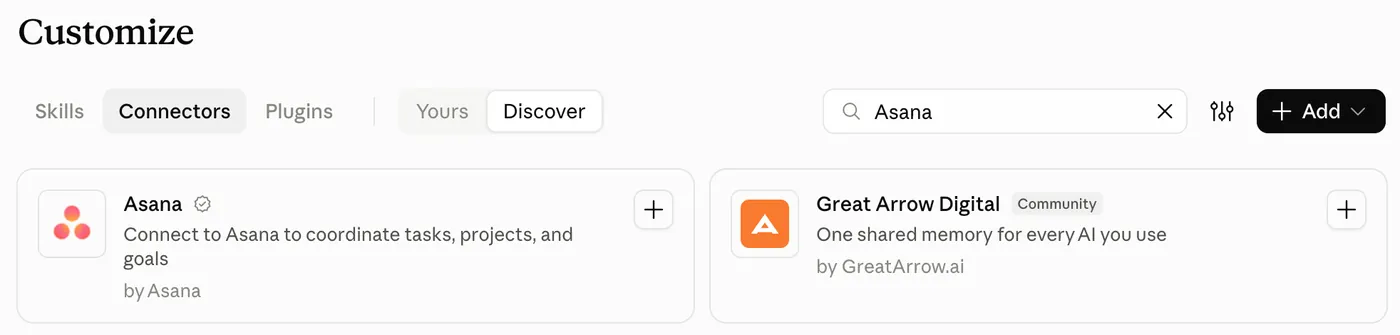
Open Google Calendar and click Connect to Claude.

Pick the Google account your calendar lives in.
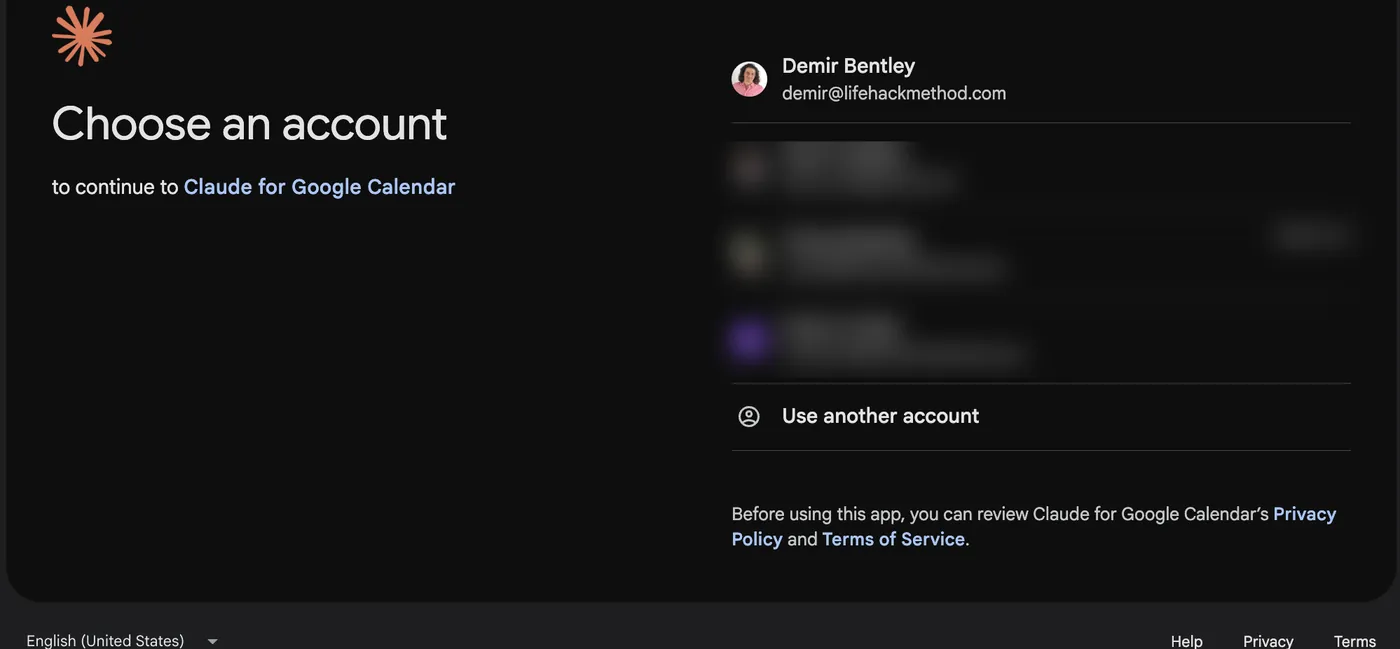
Other accounts on this screen are blurred for privacy.
Click Continue.
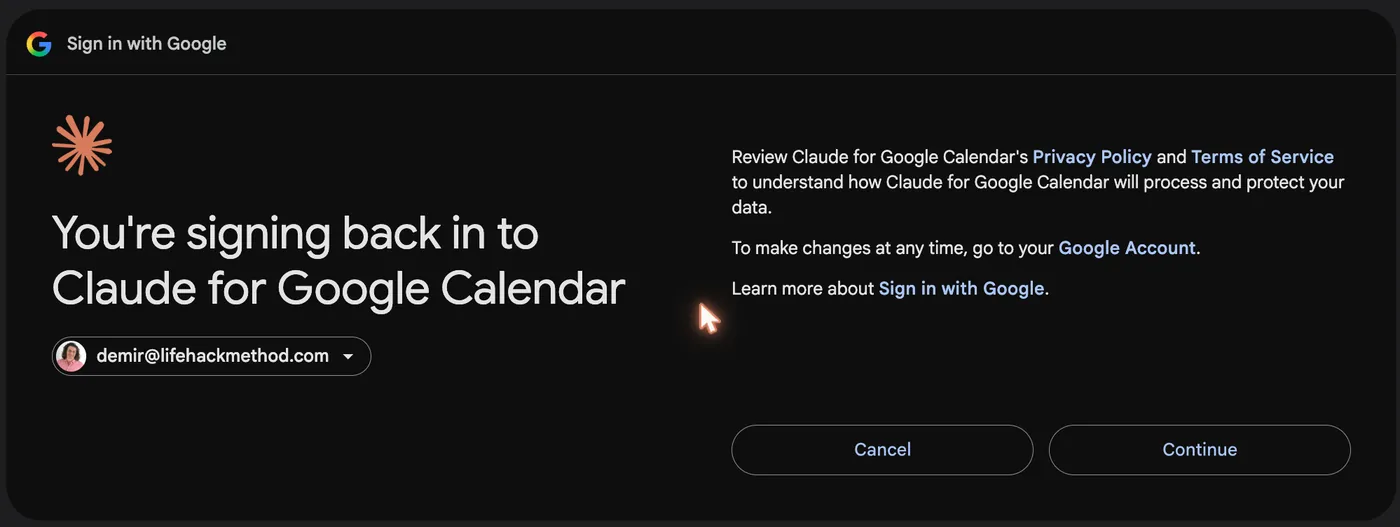
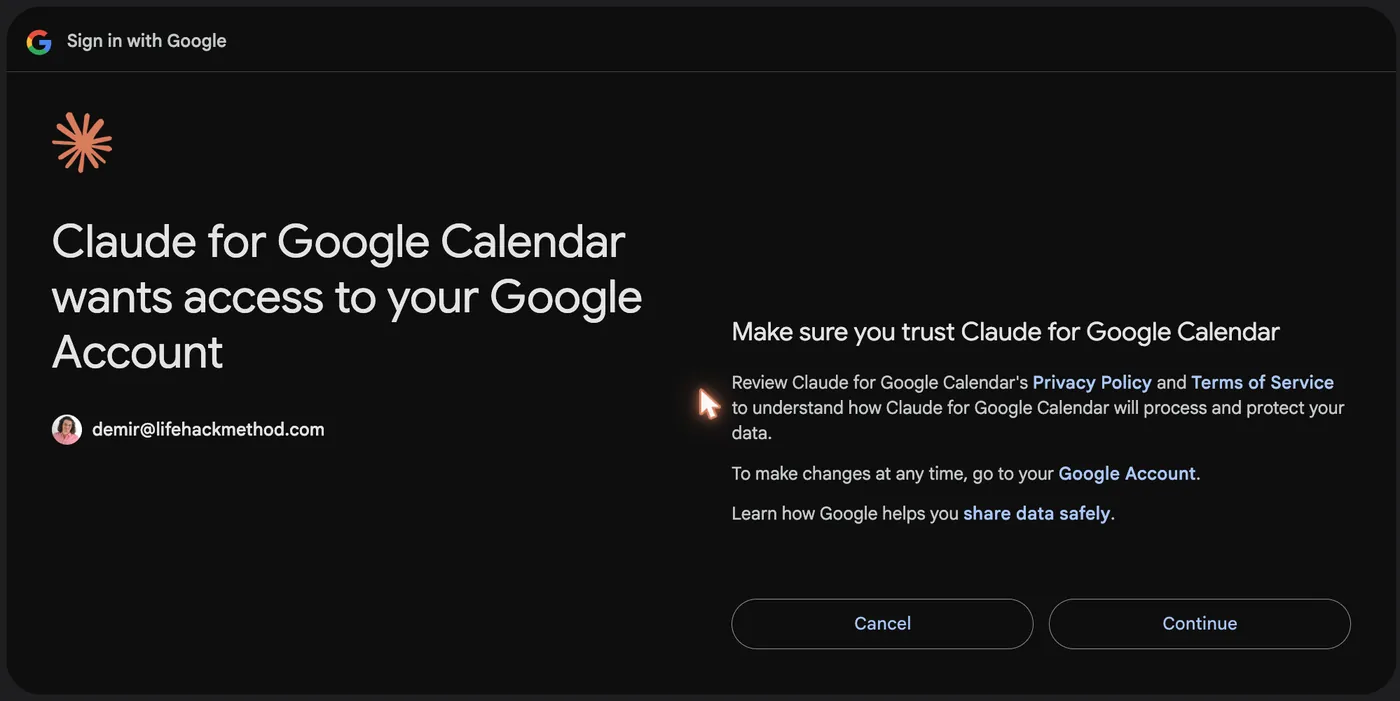
Google asks you to allow access. Click Continue.
You're back on Claude and it says Connected. Done.

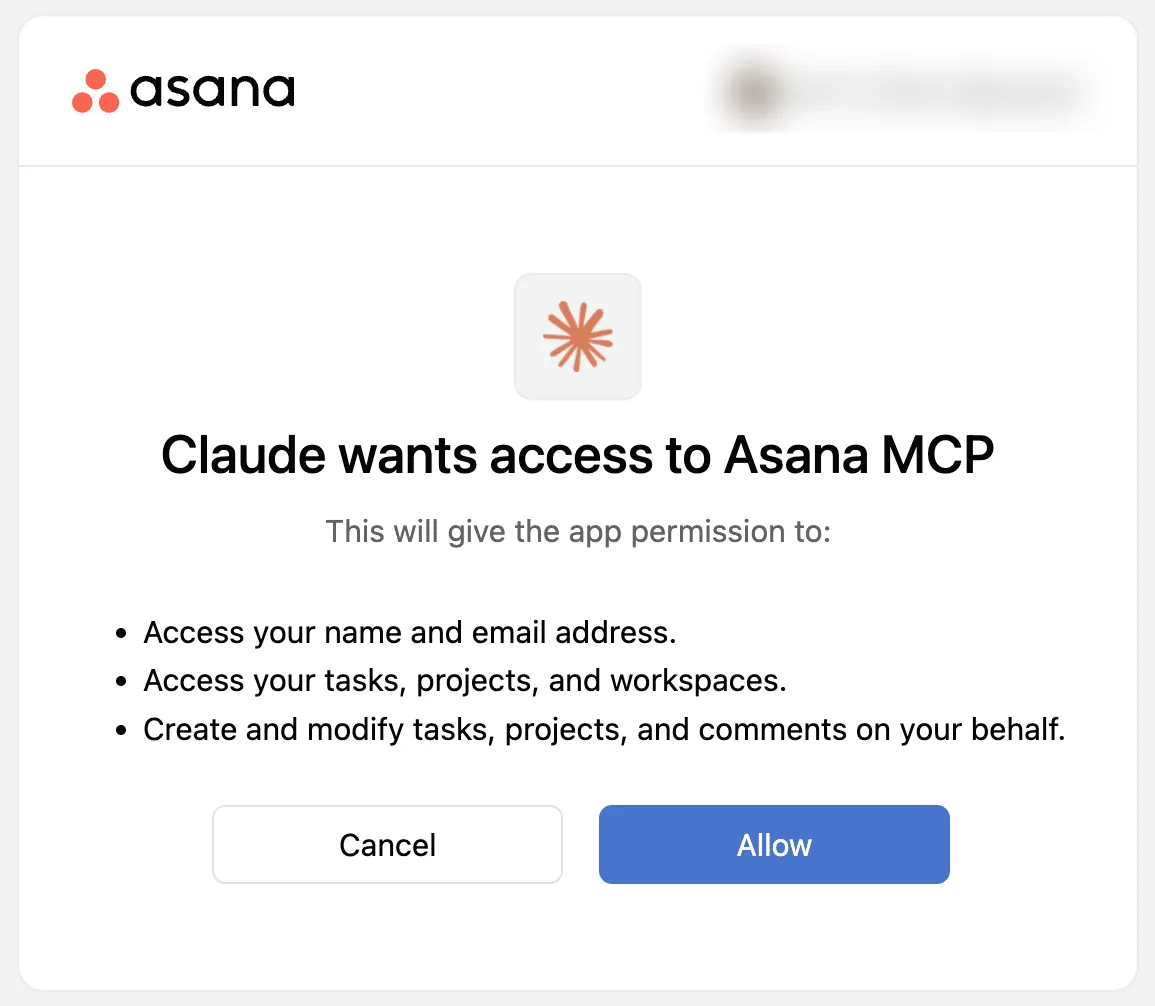
Now Asana: search Asana, click +, then Allow.
02Install the skill
About a minute. You only do this once.
Install the skill
About a minute. You only do this once.Download the zip from the top of this page (don't unzip it). Then on claude.ai: Customize → Skills → + Add → Upload skill.
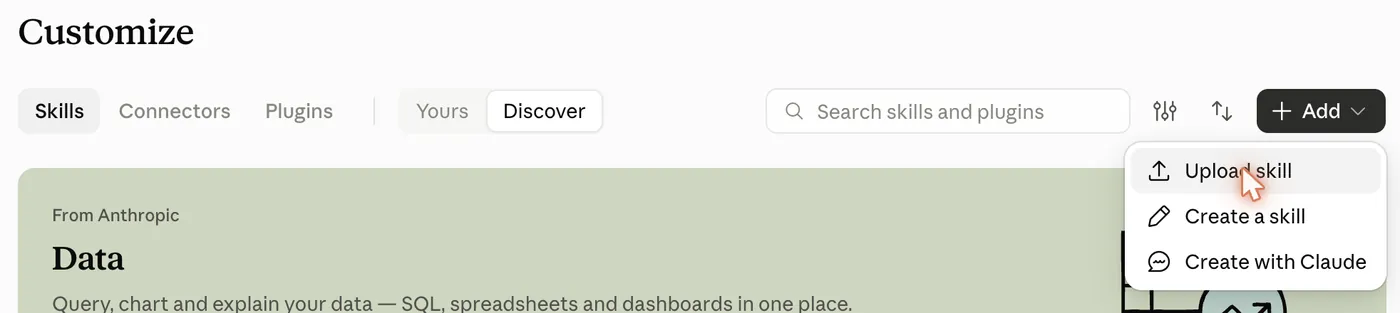
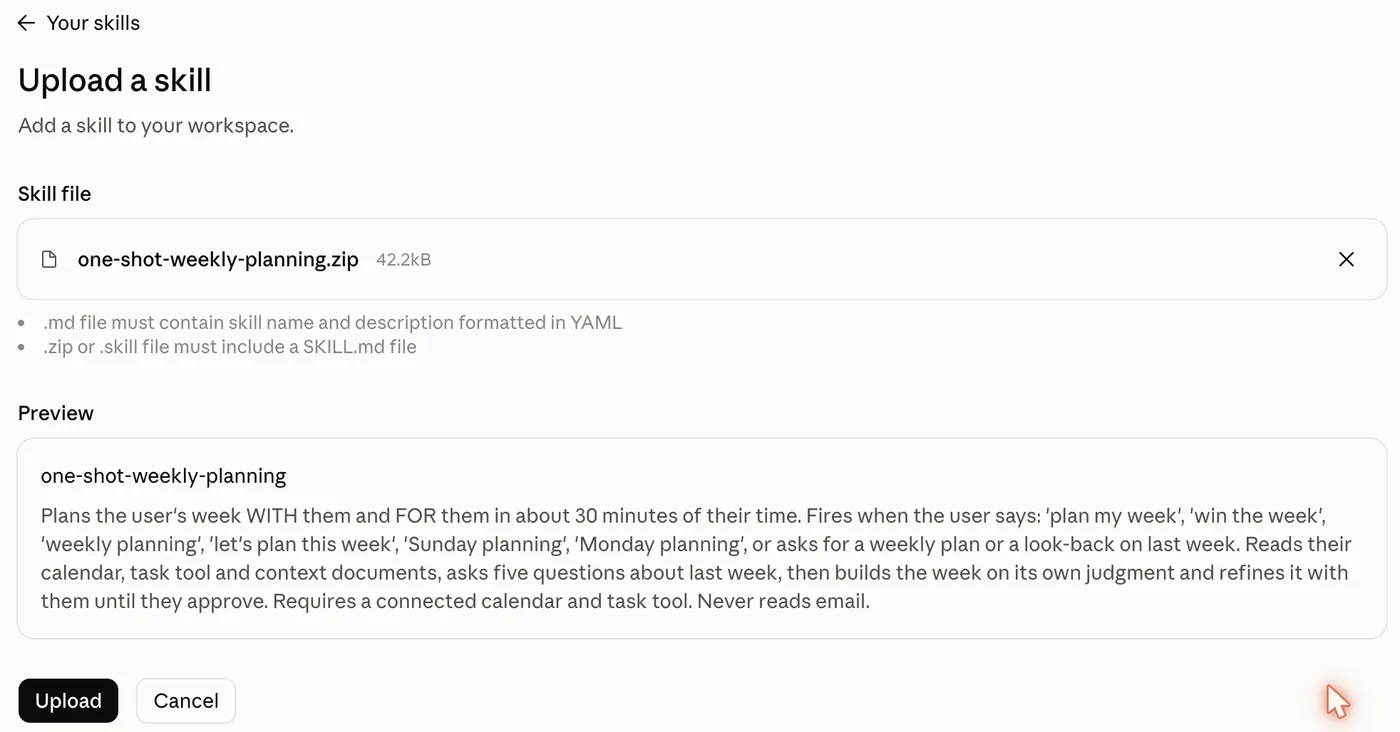
Choose the zip. Check the preview says one-shot-weekly-planning, then click Upload.
Already have an older version? Open it → ⋯ → Replace, and upload the new zip.
🔄 Then refresh. If you already had a Claude tab open, reload it (or open a new chat) so it sees the new skill.
03Run it
About 30 minutes, about 15 of them yours.
Run it
About 30 minutes, about 15 of them yours.Start a new chat and switch it to Cowork.
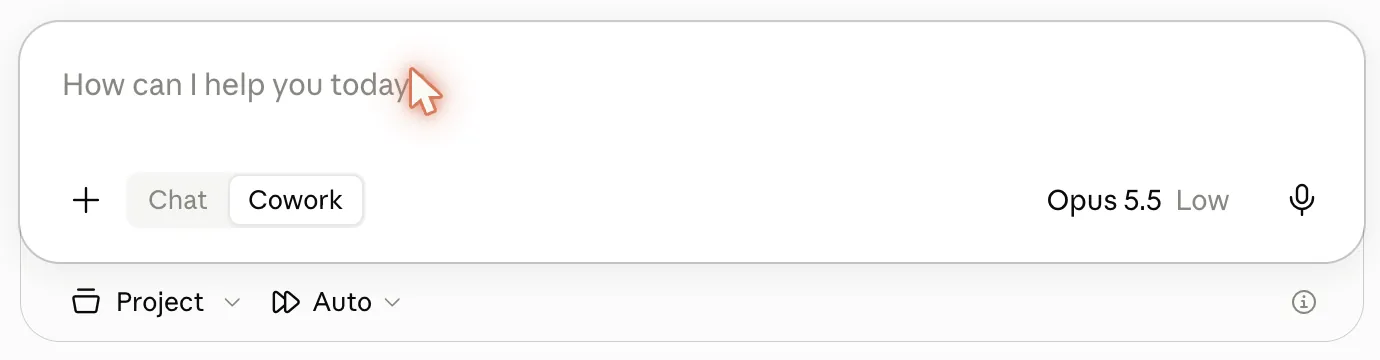
Click the model name and pick Opus 5.5.
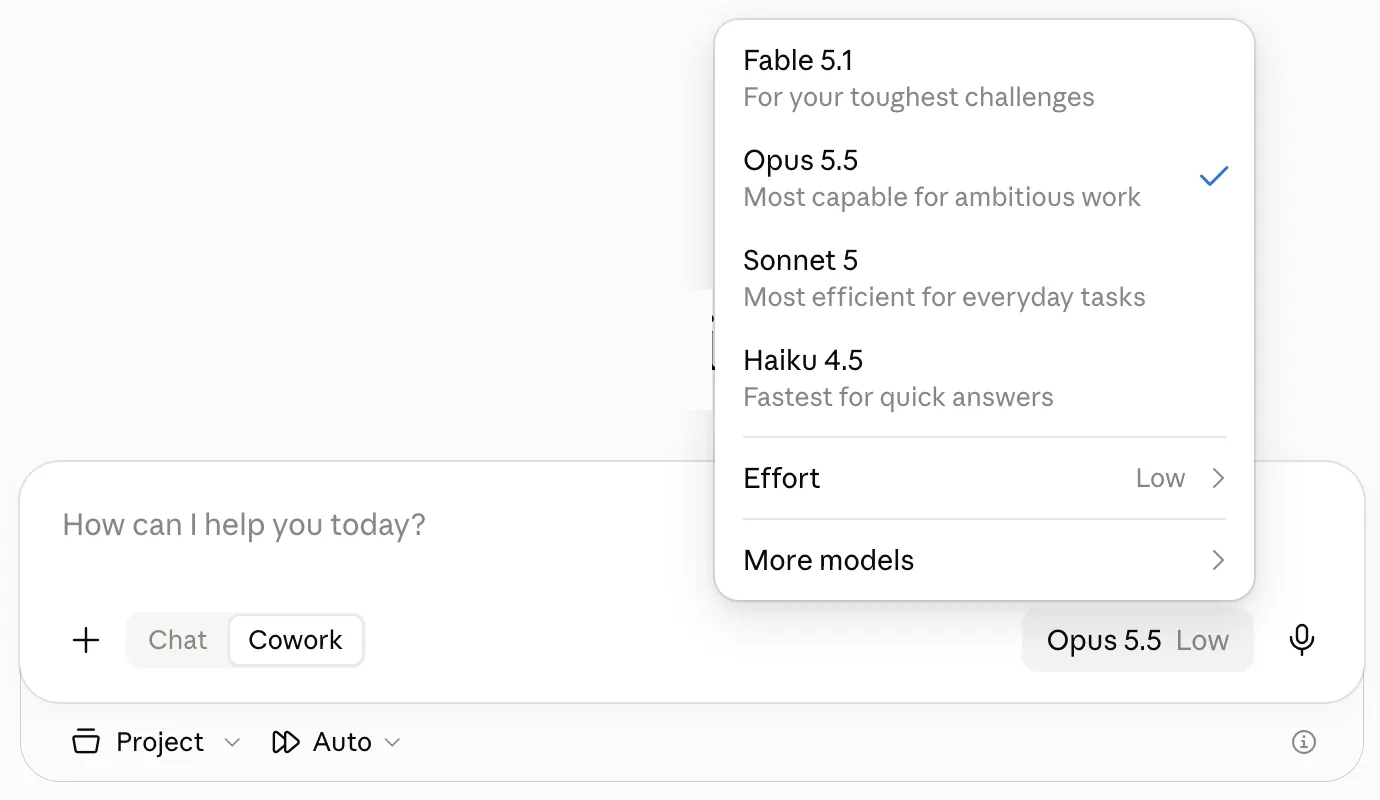
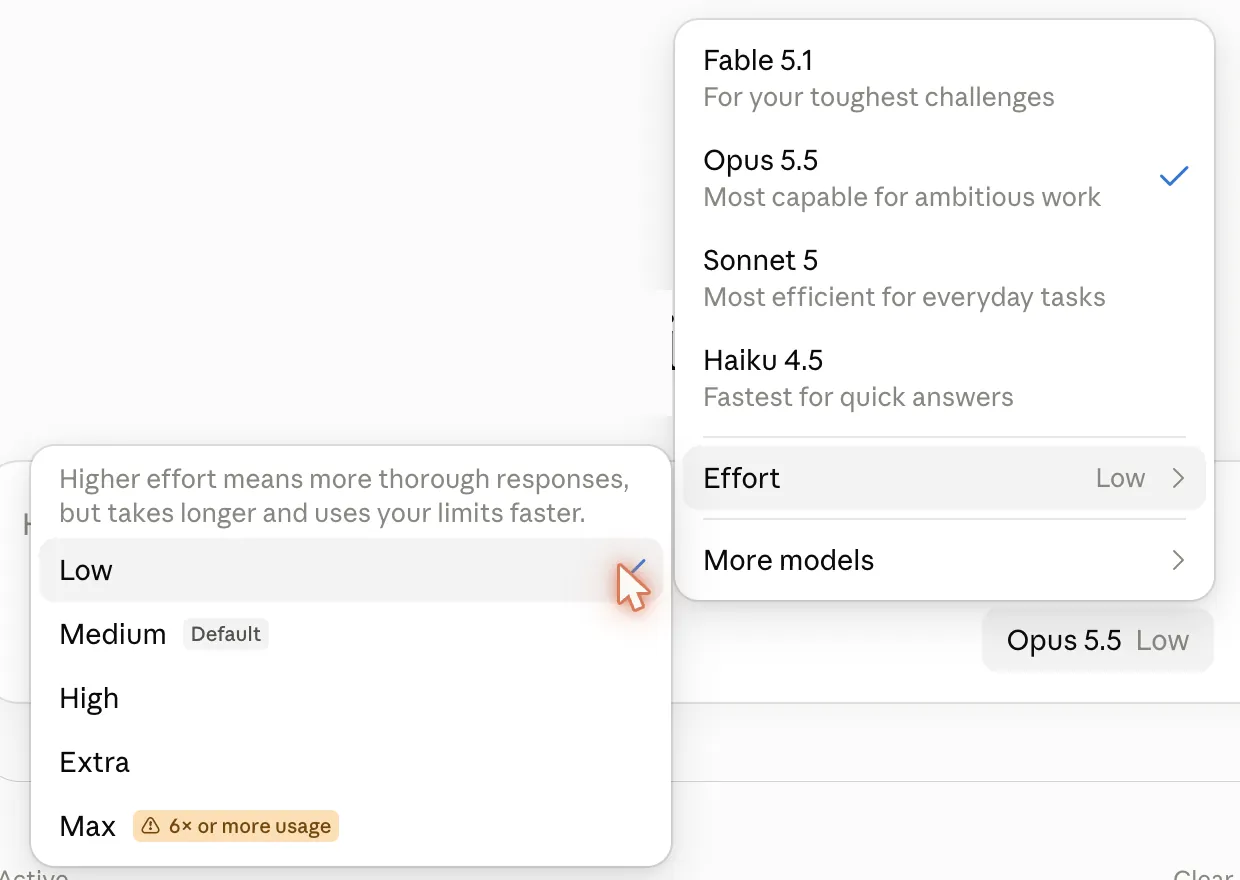
Open Effort and pick Low. Do this before you start; it can't change mid-run.
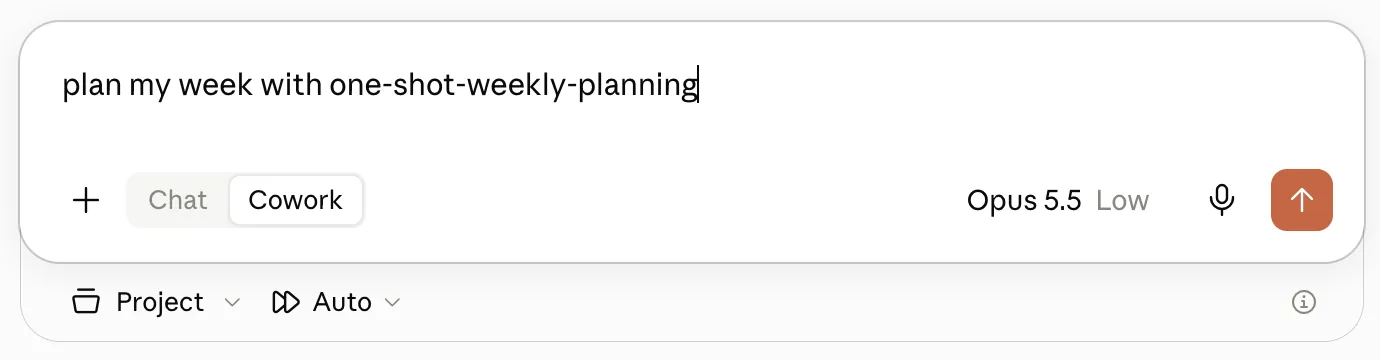
Type plan my week with one-shot-weekly-planning and send it.
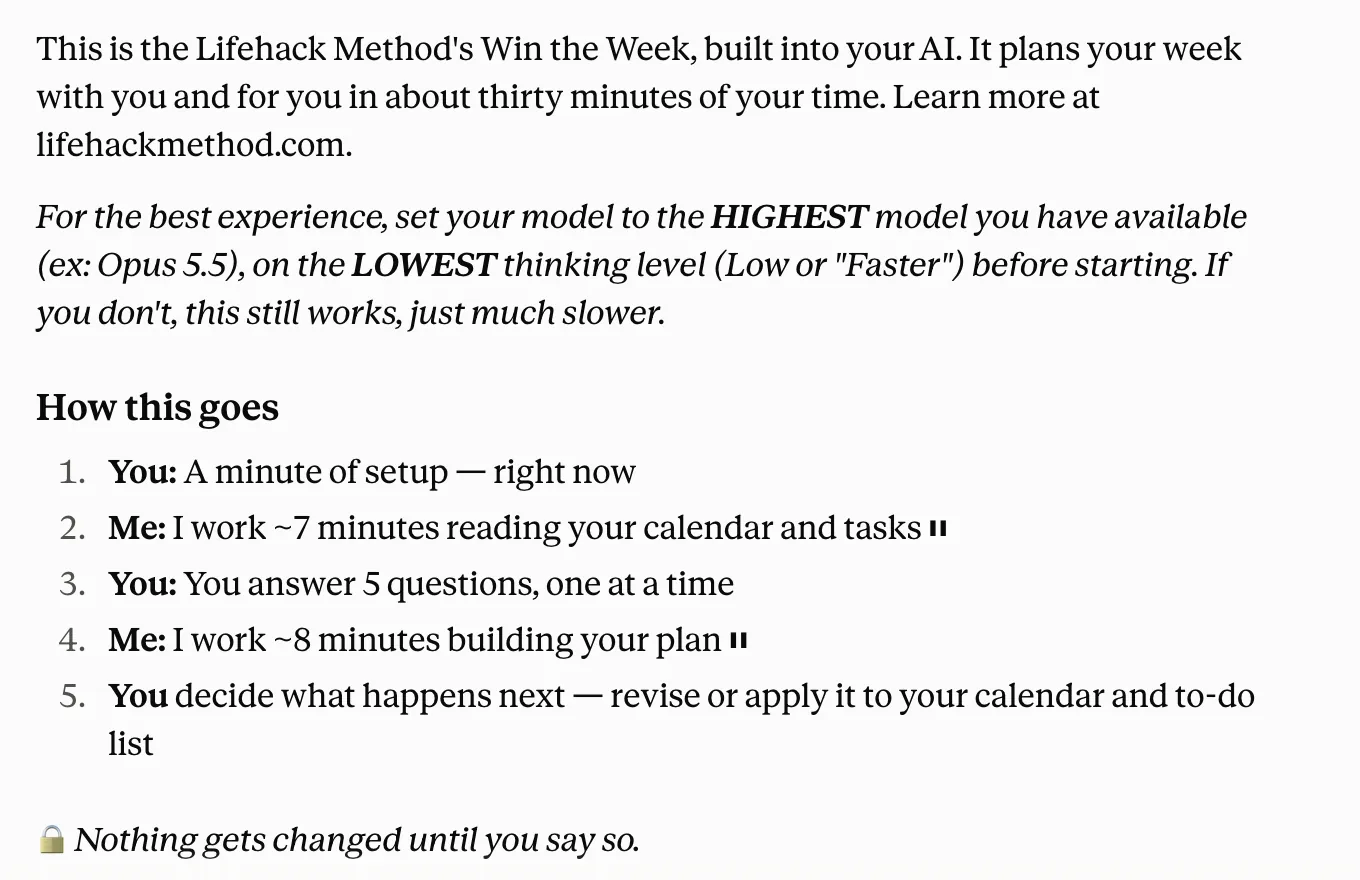
It introduces itself and asks a few setup questions. Answer them and attach your Life Map.
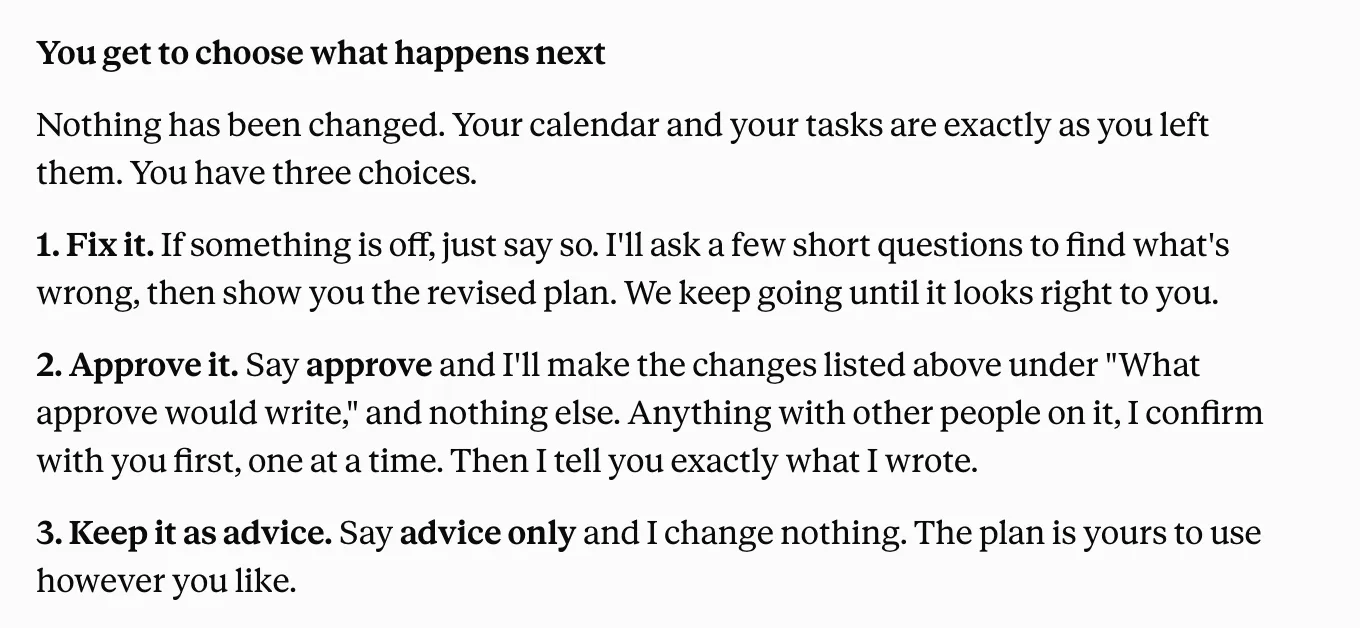
Answer its five questions, one at a time. At the end you choose: fix it, apply it, or keep it as advice.
01Connect your calendar and tasks
Once. About 3 minutes.
Connect your calendar and tasks
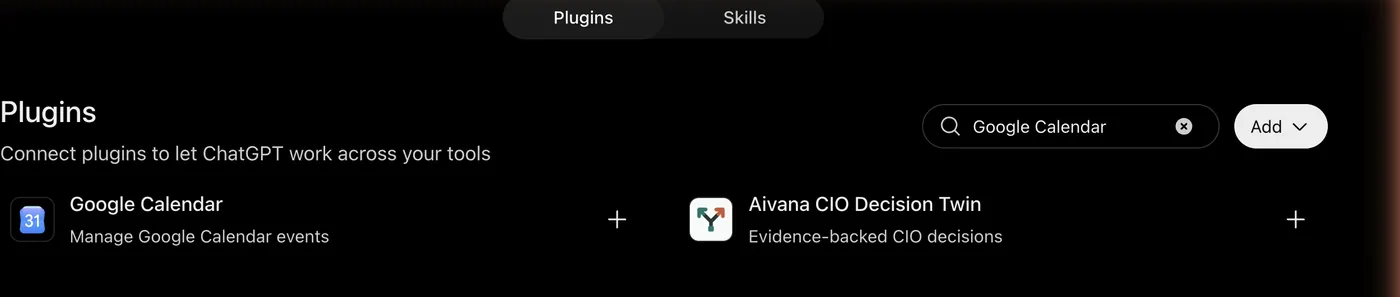
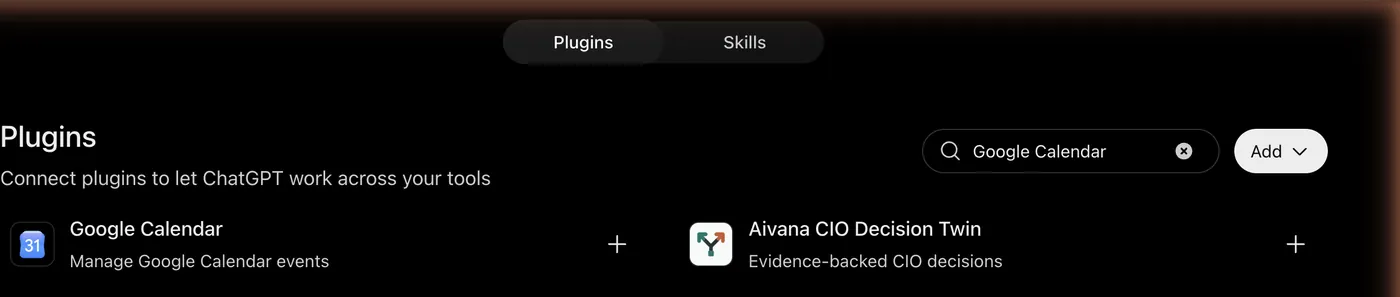
Once. About 3 minutes.On chatgpt.com, click Plugins in the left sidebar and search Google Calendar. Click +.
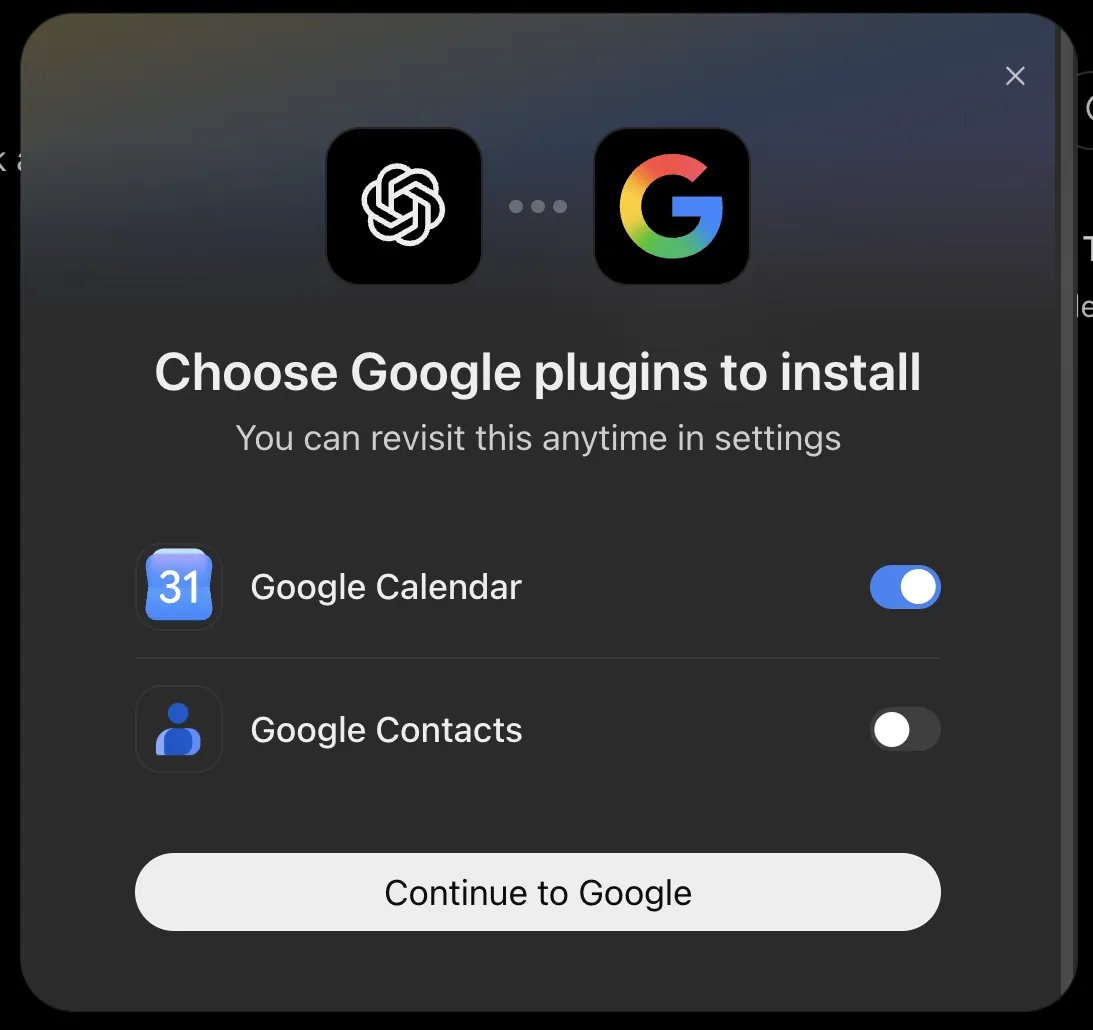
Leave Google Calendar on. Turn Google Contacts off unless you want it. Click Continue to Google.
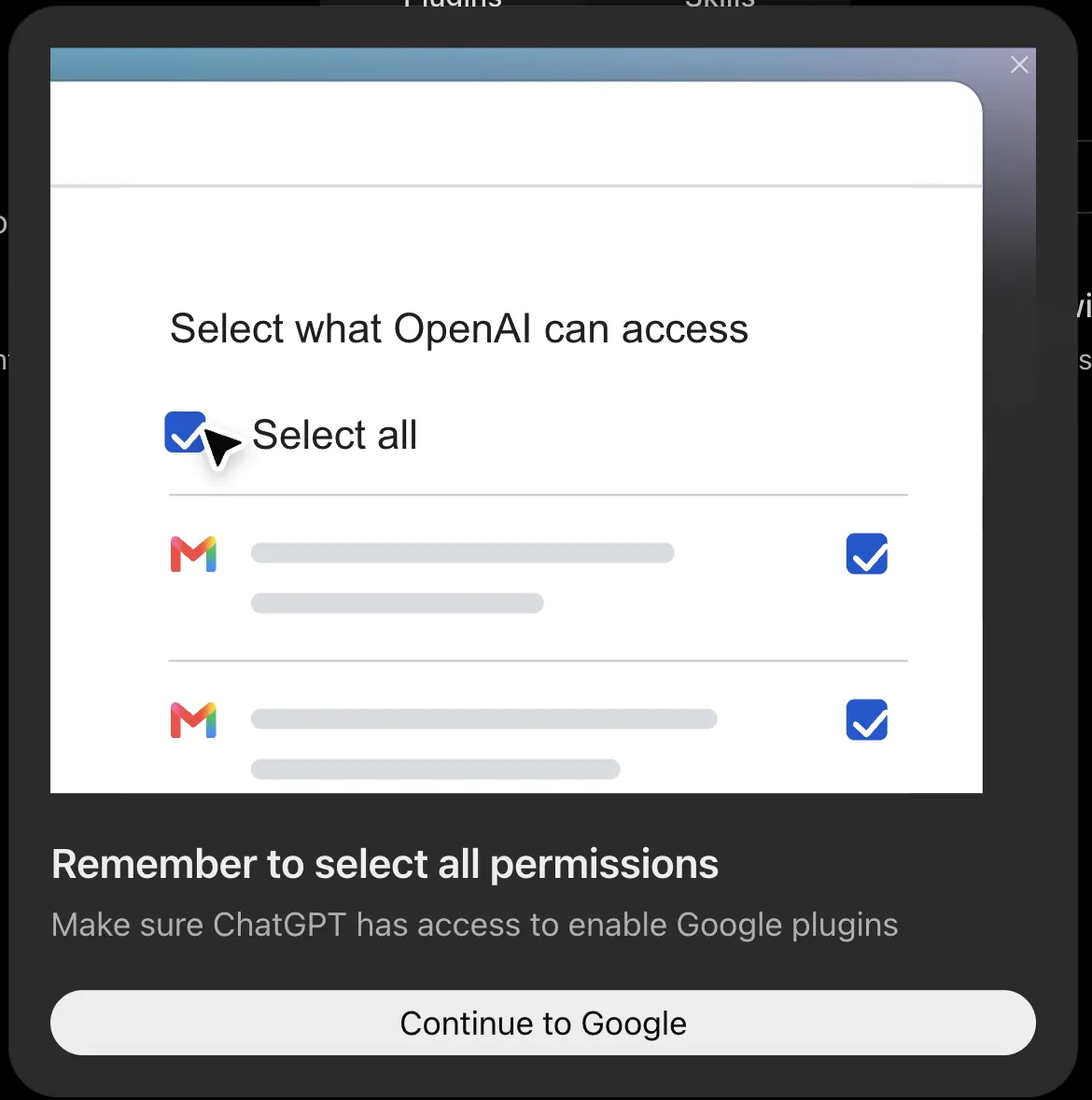
ChatGPT reminds you: tick every permission Google shows you. If you skip one, it won't connect.
Pick the Google account your calendar lives in, then click Continue on each Google screen.
Now Asana: search Asana in Plugins, click +, then Allow.
02Install the skill
About a minute. You only do this once.
Install the skill
About a minute. You only do this once.Download the zip from the top of this page. In ChatGPT: Plugins → Skills tab → Add → Upload from your computer.
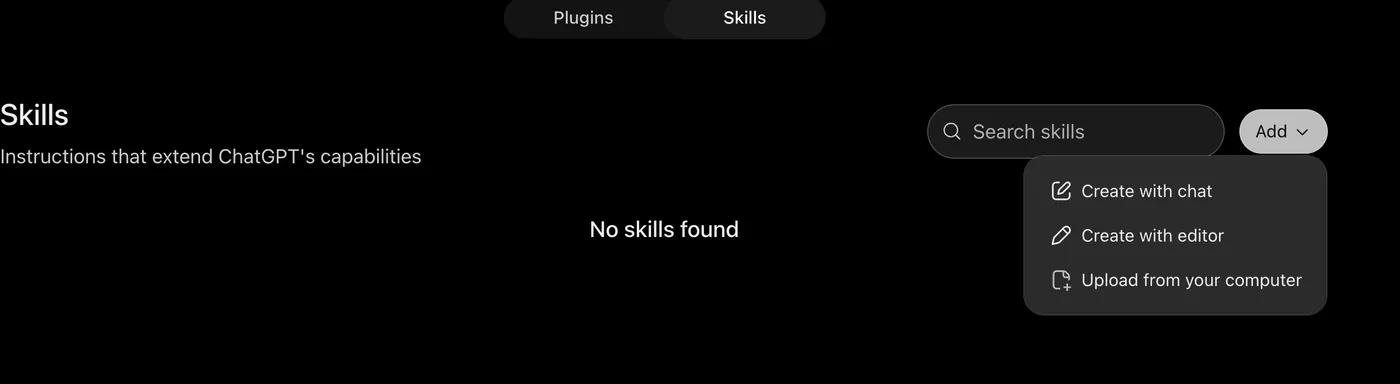
Drop the zip in the box.
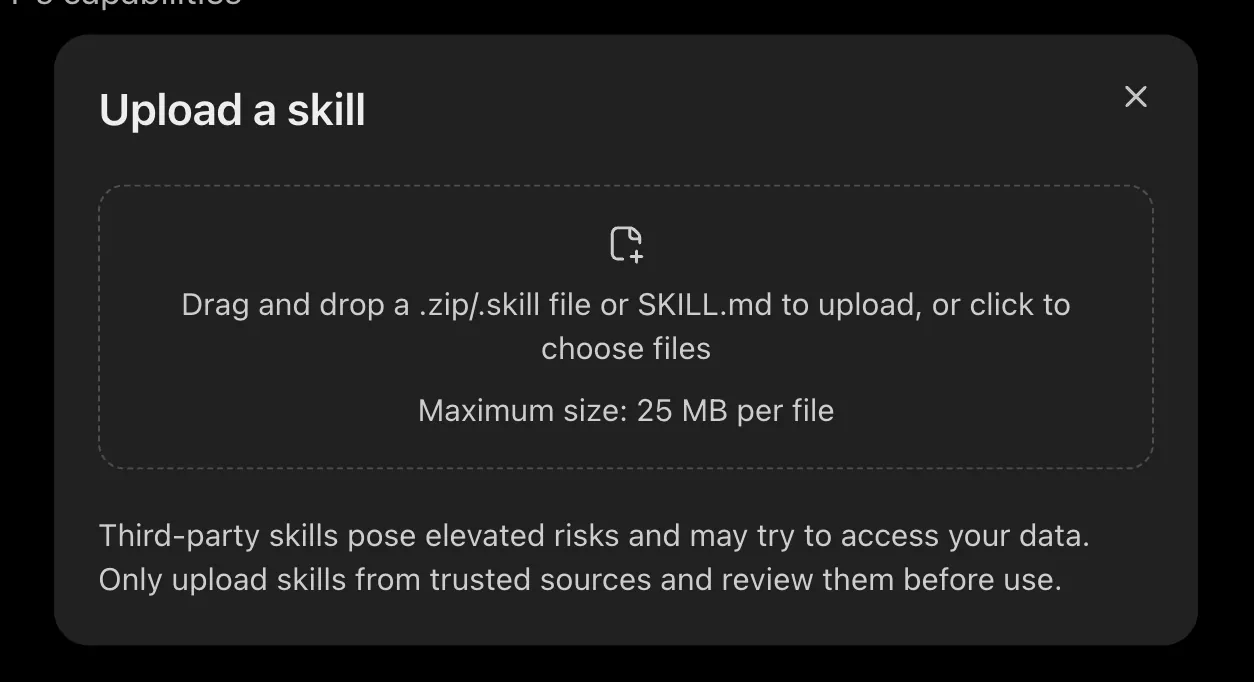
You'll see Skill uploaded. Click Done. It stays installed.
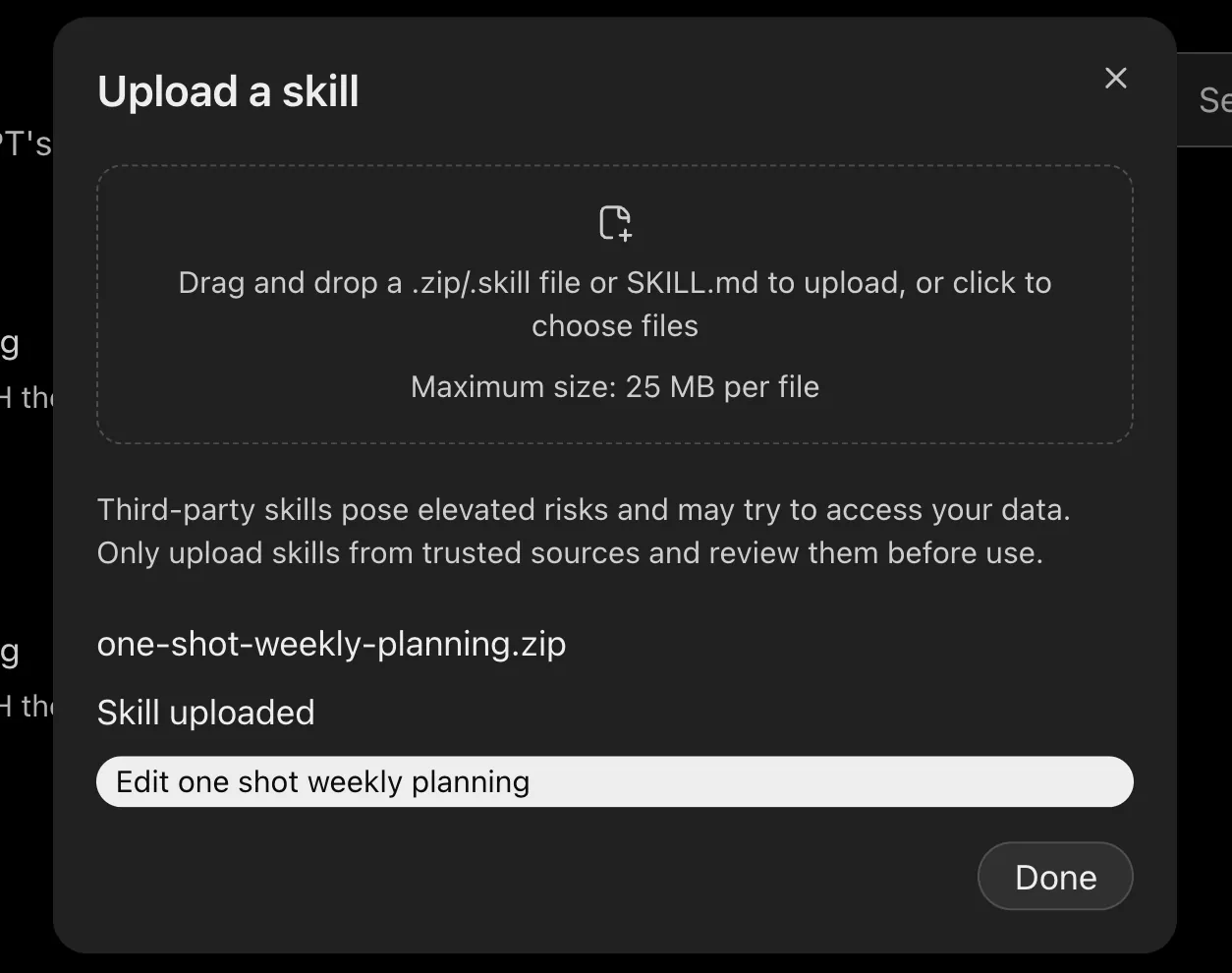 🔄 Then refresh. If you already had a ChatGPT tab open, reload it (or open a new chat) so it sees the new skill.
03Run it
About 30 minutes, about 15 of them yours.
Run it
About 30 minutes, about 15 of them yours.Start a new chat, switch to Work, and pick GPT-6 Astra.
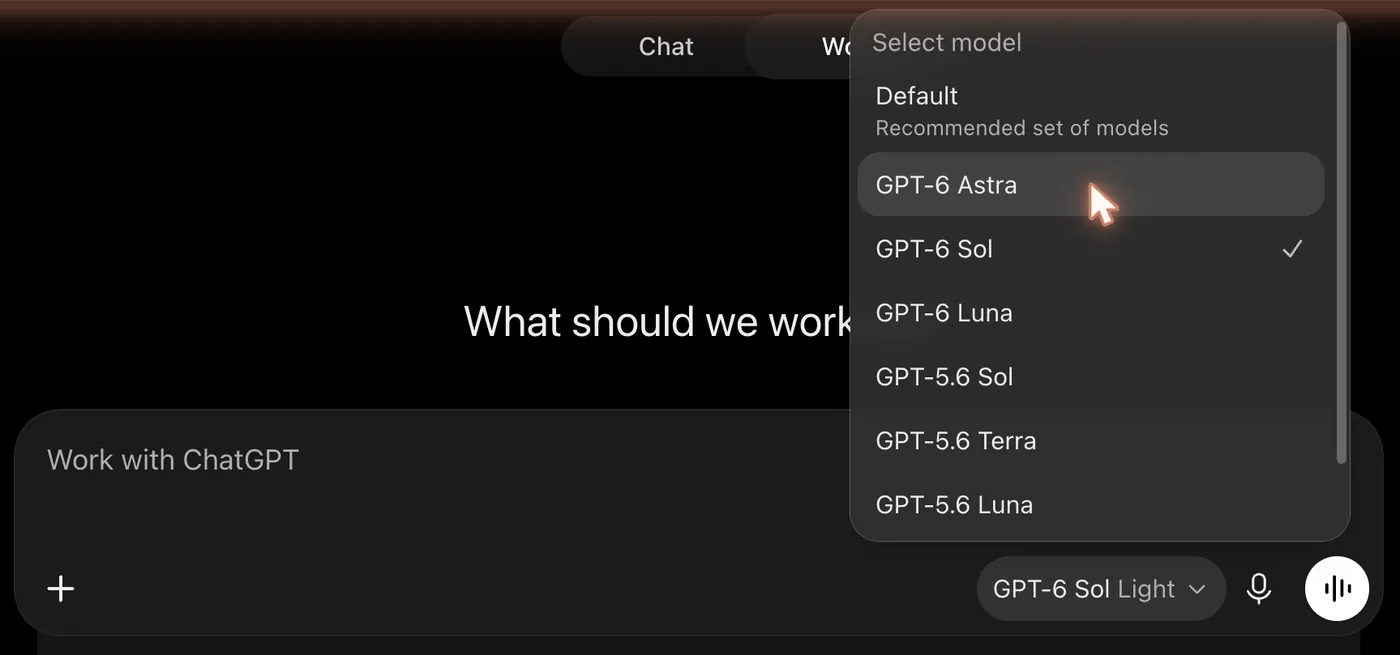
Set the effort to Light (all the way left) before you start.
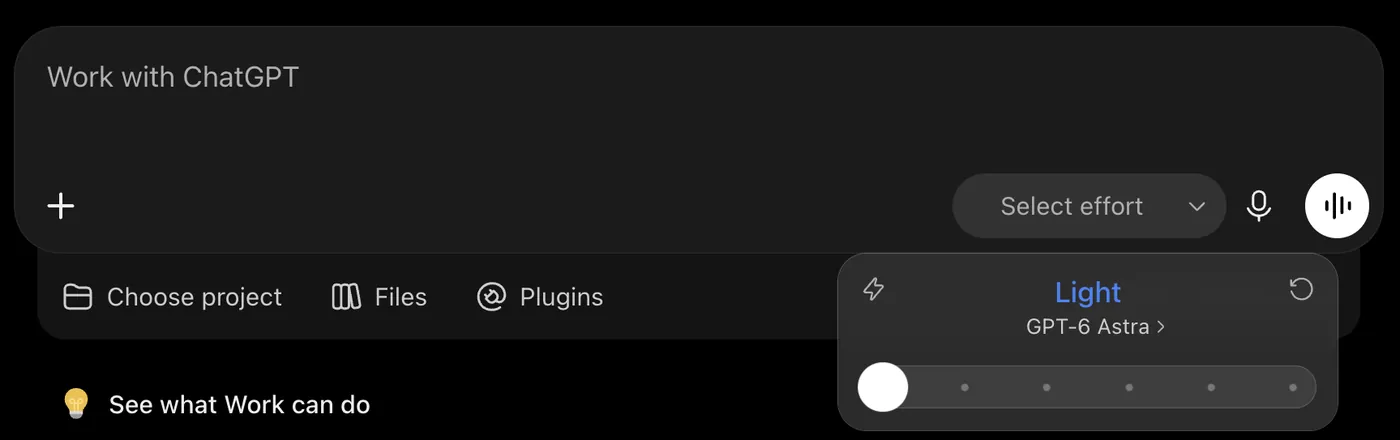
Type plan my week with one-shot-weekly-planning and send it. Attach your Life Map when it asks.

Stuck?
It doesn't seem to know the skill.
Reload the page (or start a new chat). A tab that was already open before you installed the skill won't see it until it's refreshed.
It says it can't see my calendar or tasks.
Check both connections say Connected (step 01), then start a new chat. Connections added mid-chat aren't picked up.
One of my calendars or Asana workspaces is missing.
Its first message lists everything it found and asks what's missing. Tell it there, and connect the missing account if you need to.
ChatGPT says "We couldn't connect because all of the required permissions were not granted."
Connect again and tick every box on Google's permission screen.
I use Outlook, or a task tool that isn't Asana.
It's built and tested with Google Calendar and Asana only for now. Other tools might work, but we haven't tested them.
It's really slow.
Check the model and effort before you start: Opus 5.5 on Low in Claude, GPT-6 Astra on Light in ChatGPT. The setting can't change once a run begins, so start a new chat.
Two minutes of feedback, big difference.
When your plan is done, run one short prompt in the same chat. It writes a report on how the run went: what was slow, what it guessed, what confused it. Send that to Demir and it goes straight into the next version.
You're getting this early, on purpose. It will get some things wrong, so read the plan before you approve anything. Nothing on your calendar or in Asana changes until you say so. When you connect your accounts or share personal information with Claude or ChatGPT, it's handled under their terms, not ours, and you use this at your own risk.